
Connect Your First Site
GridNMS Cloud needs a collector inside your network to do the actual watching. The collector connects outbound to your GridNMS instance — you never open any inbound firewall ports. This page gets your first collector online.
New to collectors? Read What Is a Collector? first.
Before you start
Section titled “Before you start”- A machine on the network you want to monitor (a small Linux VM is ideal — 1–2 CPUs and 1 GB RAM is plenty to start).
- Outbound HTTPS (443) access from that machine to your GridNMS instance.
- Admin access to your GridNMS instance.
1. Get your join command
Section titled “1. Get your join command”- In GridNMS, go to Configure → Collectors.
- Select Add collector. GridNMS shows a ready-to-run command containing your instance address and a one-time join token.
- Copy that command — you’ll run it on your collector machine in the next step.
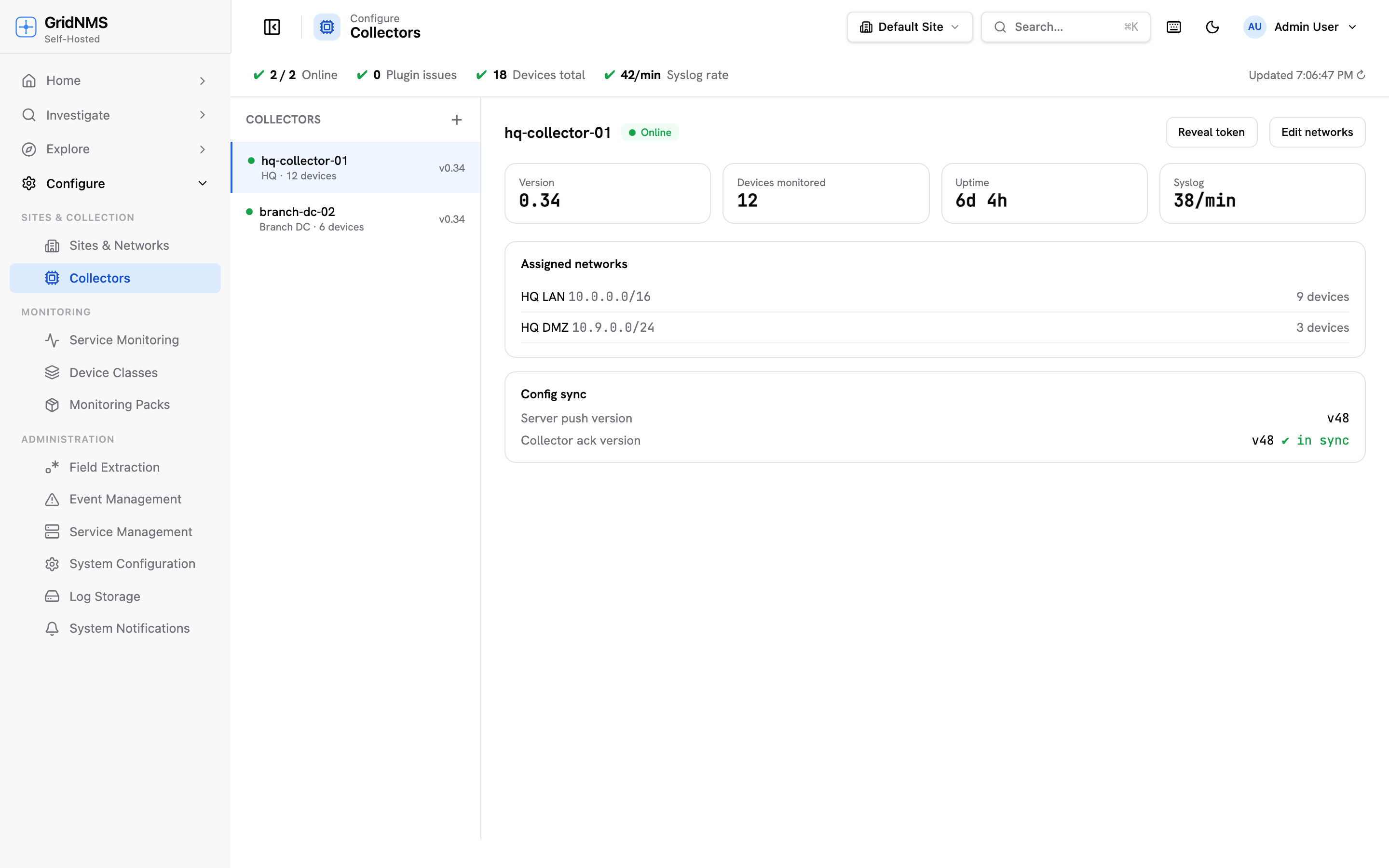 Configure → Collectors: add a collector and watch it come online.
2. Run the collector
Section titled “2. Run the collector”Run the command from the previous step on your collector machine. The Docker
image (gridnms/collector:latest) pulls straight from the public registry — no
download needed. For the desktop app, grab the installer from the
Customer Portal → Downloads (sign-in required) or see
Installing a Collector for every option.
Run it with host networking so the collector sees the real source IP of syslog and SNMP traps:
docker run -d --name gridnms-collector --restart unless-stopped \ --network host \ -e GRIDNMS_TUNNEL_URL="https://tunnel.gridnms.io/api/tunnel/ws" \ -e GRIDNMS_JOIN_TOKEN="<your-join-token>" \ -e GRIDNMS_STATE_DIR=/var/lib/gridnms \ -v gridnms-collector-state:/var/lib/gridnms \ gridnms/collector:latest(The Add collector screen fills in the tunnel URL and token for you.)
For a small site, install the GridNMS Collector desktop app — it runs the collector natively and preserves real source IPs. Download it from the Customer Portal → Downloads, then follow Installing a Collector.
3. Confirm it’s online
Section titled “3. Confirm it’s online”Back on Configure → Collectors, your new collector appears and turns online within a few seconds.
4. Tell the collector what to watch
Section titled “4. Tell the collector what to watch”A collector only monitors the networks you assign to it:
- Open your collector on Configure → Collectors.
- Add the networks (IP ranges / CIDRs) it’s responsible for.
- Save. The collector begins discovering and watching devices in those ranges.
More on this in Networks & Sites.
What’s next
Section titled “What’s next”Your network is connected. Now add devices and see GridNMS in action: